FYI : This trick works only for Windows
Some people was having trouble with speeding their computer ,
searching and browsing all the way to increase the speed by using softwares provides by third-person or even changing the form of certain registry .
but no one get significant results ..
but now , there's a possible way to do it only by 'clicking' ?
how does it works ?
it's simple guys , it's based on logical term ,
"by discarding unnecessary object , everything will get easier .."
confused 
okay , we'll explain it ..
Identify the Dead Weight
that's the first thing to do . Download and install a program that allows you to view all the processes currently running on your windows computer . the program we'll use isSysinternals Process Explorer . Once you’ve done that, open it up. You’re likely to see something like this:
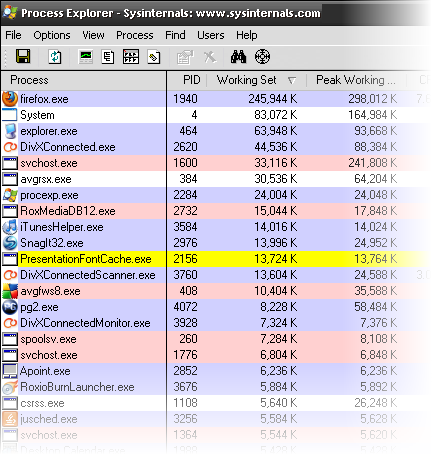 Look at the Working Set and Peak Working Set columns. That shows how many kilobytes of your RAM are being used by the program right now, and what the peak amount used at one time was. As you can see, my Firefox is using roughly 245 MB of RAM. That’s about one-quarter of the RAM in my computer.
if we look down further, RoxMediaDB12, iTunesHelper and SnagIt32 are taking up another approximately 43 MB of RAM. if u want to run a program that uses big capacity of RAM , each of that program must compete with one another . In fact , none of them is not in use .
Now order your running services and applications by process, by clicking on the Process column header until you get everything shown to you in a tree, like this:

What this shows us is which excess things are Processes and which are Services. This is important, because what we do next requires us to know the difference. Those things that are under the Services branch are services. Typically the processes will be shown further down. Let’s write down all the proper names for the services and processes as we’ll need those later. To find the proper names, right-click on a service and then select Properties. Once you are in the Properties window, click on the tab Services. This will give you the correct name of the service you wish to stop. Let's say we'll use CinemaNowSvc.exe as an example.

To find the Image Name for a process, it should be what you see in the Description Column. For example, the iTunes Helper Process has the description iTunesHelper. If you aren’t sure what the Image Name is, you can right-click on the process, open the Properties window and find it on the Image File tab.

Do that for all the services and processes that you know aren’t necessary for your computer, or the single program you want to go faster, to run. That may take some research, but it’s worth it.
Trim the Dead Weight
now , make a new notepad and write these things down on it :then , write a name for it . for example , CinemaNow Service . so the command will be like this :@ECHO OFF
echo *** Stopping Services ***
NET STOP “Name of the Service You Want to Stop”
echo *** Services Stopped ***
NET STOP “CinemaNow Service”You’ll need to write this command for every service that you wish to stop. This could be a dozen lines or so. The line that reads echo *** Services Stopped *** just lets us know when all the services are stopped. Yep, I’m Captain Obvious.
To stop the process, you’ll type a block like :
echo *** Stopping Processes ***
TSKILL “iTunesHelper”
echo *** Processes Stopped ***
PAUSE
You don’t need to use the Image Name, you can also use the Process ID as it is shown in Process Manager. As usual, the echo lines let us know when the stopping of the processes begins and ends. The PAUSE command results in a line asking us to hit any key to continue. It’s just a more concrete way of letting you know the batch file is done.
To save this as a batch file that you can run by just double-clicking on it, we need to do a few things. Click on File > Save As in Notepad. Then when the Save As… window opens, name the file whatever you want. I chose StopServicesProcesses.bat. You need the .bat on the end. Now change the Save as type: box to All Files. Click Save.
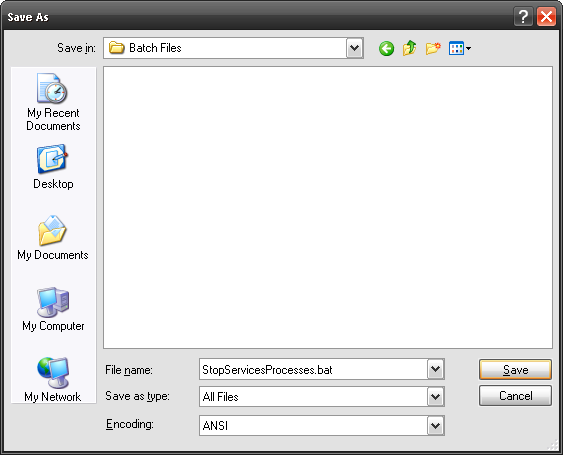
Now you have a batch file! Double-click on it and enjoy your speed! You should see a command window open that will look something like this:


-------------------------------------------------------------------------------
if u want Indonesian's Translation , also come to this site .
 Best Regards :: Cheat-This-Blog


0 komentar:
Posting Komentar