Minggu, 13 Desember 2009

[ Tips and Trick ] 3 Simple Ways To Back-Up Data

Allright , for some reason , people got their own way to back their data up..
using many features of softwares , editing registry for experts...

and about registry , we know this 'registry' thing is the most critical part computer have , imagine that a part is used false , we're sure that the computer will be damaged internally.


actually , they don't have to do that far only for saving their important data...
we'll give 3 easiest ways for this 'back-up' problem ..
it's done in two part , let's call that 'back-up and restore part' ..

okay , here we go ..


1 . Export Spesific Registry Keys

If you are going to make changes to a specific registry key, you can selectively export or restore this key.

: BACK-UP :

Click > Start > Run, type > regedit and click > OK. The registry editor will open.

Select the key you wish to backup, right-click to open the menu and click > Export.


Enter a name for the REG file and save it to a safe location.

In the same fashion you can export an entire registry branch or the registry as a whole.

: RESTORE :

Just simply double-click the backed up REG file and it will automatically update the registry with its contents.


2 . System State Backup

Windows XP Pro and other NT based Windows versions have an internal backup feature, which can be used to backup essential system data, including the Boot file, the COM+ class registration database, and the registry.

: BACK-UP :

Go to > Start > All Programs > Accessories > System Tools > Backup Option.

The Backup or Restore Wizard will open. Click and switch to > Advanced Mode and open the > Backup tab.

Select the files you would like to backup, in this case > System State, which can be found under > My Computer.


Be sure a path is displayed under > Backup media or file name. If this is not the case, click > Browse… and select a destination. You can also change the name of the backup file. Then click > Start Backup.

A window summarizing the backup data will open. Change the backup description and eventually make further settings. Then click > Start once more. This backup can take up to 5 minutes.

: RESTORE :

To restore a system state backup, open the Backup or Restore Wizard in Advanced Mode as described above.

Switch to the > Restore and Manage Media tab. Your previous backups should be listed. Select the one you would like to restore and click > Restore Backup.


3 . System Restore

When you set a system restore point, several files are saved, including files in the Windows File Protection (Dllcache) folder, the local user profile, COM+ and WMI databases, IIS metabase, all files that are monitored due to their file extension and the registry.

With a system restore point you can return to a previous system state. This can be helpful in case changes to the registry, new drivers or program installations have caused damage. Your personal documents, such as browser bookmarks, eMails or photos are not affected.

: BACK-UP :

To create a system restore point manually, click > Start > Run, type > %SystemRoot%\System32\restore\rstrui.exe and click OK to launch the tool.

On the welcome page select > Create a restore point and click > Next. On the following page enter a name for this restore point and click > Create.


: RESTORE :

To restore previous computer settings and an older registry, you open the System Restore welcome page as described above, select > Restore my computer to an earlier time and click > Next.

On the subsequent page select a recent system restore point from the calendar and click > Next.


The Confirm Restore Point Selection page displays the restore point you chose. Click > Next to continue. Your computer will now start to restore the previous Windows XP configuration and reboot.

For Indonesian Translation , Just Click here lol

happyBest Regards :: Cheat-This-Bloghappy

Read more...

Sabtu, 12 Desember 2009

[Misc] Long Absence

hi there..

we're sorry for the absence we've made...

because we're having some university troubles out there...

but now , we're sure that we'll start this blog again...

happyBest Regards :: Cheat-This-Bloghappy

Read more...

Minggu, 22 November 2009

[ Info ] My First 'Read-More' Post Test

Okay , this post will have no meaning for our purpose in this blog , because here , we're going to test whether the 'read-more' function works or not , if it does , below this sentence , there'll be a 'read more' links that will lead you to the complete content of this test-post
this is the complete content of this test-post , thank you

want to know how ? go to this website

for indonesian translation , just check this blog


happyBest Regards :: Cheat-This-Bloghappy

Read more...

Sabtu, 21 November 2009

[ Tips and Trick ] Speed Up Computer Just By Double-Clicking

FYI : This trick works only for Windows

Some people was having trouble with speeding their computer ,
searching and browsing all the way to increase the speed by using softwares provides by third-person or even changing the form of certain registry .
but no one get significant results ..

but now , there's a possible way to do it only by 'clicking' ?
how does it works ?
it's simple guys , it's based on logical term ,
"by discarding unnecessary object , everything will get easier .."
confused
question??

okay , we'll explain it ..

Identify the Dead Weight

that's the first thing to do . Download and install a program that allows you to view all the processes currently running on your windows computer . the program we'll use is
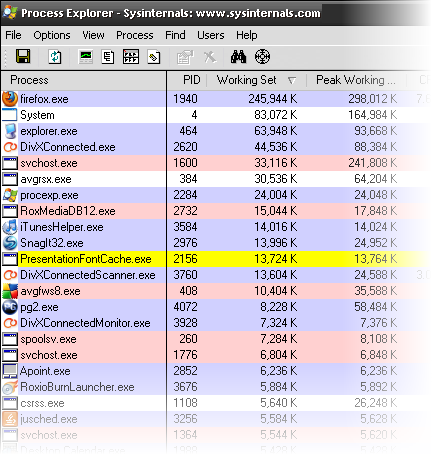
Sysinternals Process Explorer . Once you’ve done that, open it up. You’re likely to see something like this:

Look at the Working Set and Peak Working Set columns. That shows how many kilobytes of your RAM are being used by the program right now, and what the peak amount used at one time was. As you can see, my Firefox is using roughly 245 MB of RAM. That’s about one-quarter of the RAM in my computer.

if we look down further, RoxMediaDB12, iTunesHelper and SnagIt32 are taking up another approximately 43 MB of RAM. if u want to run a program that uses big capacity of RAM , each of that program must compete with one another . In fact , none of them is not in use .


Now order your running services and applications by process, by clicking on the Process column header until you get everything shown to you in a tree, like this:


What this shows us is which excess things are Processes and which are Services. This is important, because what we do next requires us to know the difference. Those things that are under the Services branch are services. Typically the processes will be shown further down. Let’s write down all the proper names for the services and processes as we’ll need those later. To find the proper names, right-click on a service and then select Properties. Once you are in the Properties window, click on the tab Services. This will give you the correct name of the service you wish to stop. Let's say we'll use CinemaNowSvc.exe as an example.


To find the Image Name for a process, it should be what you see in the Description Column. For example, the iTunes Helper Process has the description iTunesHelper. If you aren’t sure what the Image Name is, you can right-click on the process, open the Properties window and find it on the Image File tab.


Do that for all the services and processes that you know aren’t necessary for your computer, or the single program you want to go faster, to run. That may take some research, but it’s worth it.

Trim the Dead Weight

now , make a new notepad and write these things down on it :

@ECHO OFF

echo *** Stopping Services ***

NET STOP “Name of the Service You Want to Stop”

echo *** Services Stopped ***

then , write a name for it . for example , CinemaNow Service . so the command will be like this :
NET STOP “CinemaNow Service”
You’ll need to write this command for every service that you wish to stop. This could be a dozen lines or so. The line that reads echo *** Services Stopped *** just lets us know when all the services are stopped. Yep, I’m Captain Obvious.

To stop the process, you’ll type a block like :

echo *** Stopping Processes ***

TSKILL “iTunesHelper”

echo *** Processes Stopped ***

PAUSE

You don’t need to use the Image Name, you can also use the Process ID as it is shown in Process Manager. As usual, the echo lines let us know when the stopping of the processes begins and ends. The PAUSE command results in a line asking us to hit any key to continue. It’s just a more concrete way of letting you know the batch file is done.

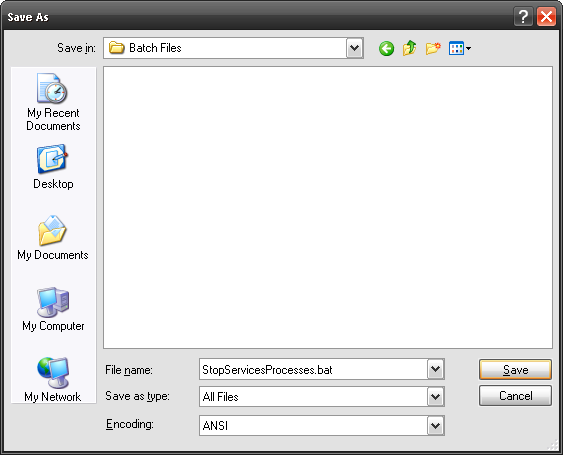
To save this as a batch file that you can run by just double-clicking on it, we need to do a few things. Click on File > Save As in Notepad. Then when the Save As… window opens, name the file whatever you want. I chose StopServicesProcesses.bat. You need the .bat on the end. Now change the Save as type: box to All Files. Click Save.

Now you have a batch file! Double-click on it and enjoy your speed! You should see a command window open that will look something like this:

Now , Compare The Speed venere

-------------------------------------------------------------------------------

if u want Indonesian's Translation , also come to this site .

happyBest Regards :: Cheat-This-Bloghappy


Read more...

Kamis, 19 November 2009

Cheat - This - Blog : : Introduction : :

" Welcome to Cheat-This-Blog "
that's the only words we can express for now ..
the truth is , we dunno what to write and what to say in this blog for now...
but exactly , this blog will provide you kinds of information about technology from many aspects . not just software , hardware , programming , networking and even gaming , etc ~

and FYI , of course the information we provide is UP TO DATE...

we dare to say that we're newbie ,
so maybe there's more to learn for us , and hope all of the readers can forgive our lack of deficiency
wink

finally , thank you very much for reading my blog :)

HAPPY READING
biggrin

happyBest Regards :: Cheat-This-Bloghappy

Read more...